Working with Images
In this section, we’ll dive deep into how OpenCV handles image data, color spaces, and pixel manipulation. Mastering these concepts is key to tackling any advanced computer vision project.
🎨 Color Spaces in OpenCV
OpenCV loads images in BGR (Blue-Green-Red) by default. However, for different applications, you often need to convert images to other color spaces like:
- RGB – for accurate color display
- Grayscale – for light intensity only
- HSV – separates color from brightness
- LAB – simulates human color perception
🔁 cv2.cvtColor()
This function converts an image from one color space to another.
Syntax:
cv2.cvtColor(src, code)Parameters:
src: Input imagecode: Conversion code (e.g.cv2.COLOR_BGR2GRAY)
Returns: New image in the target color space.
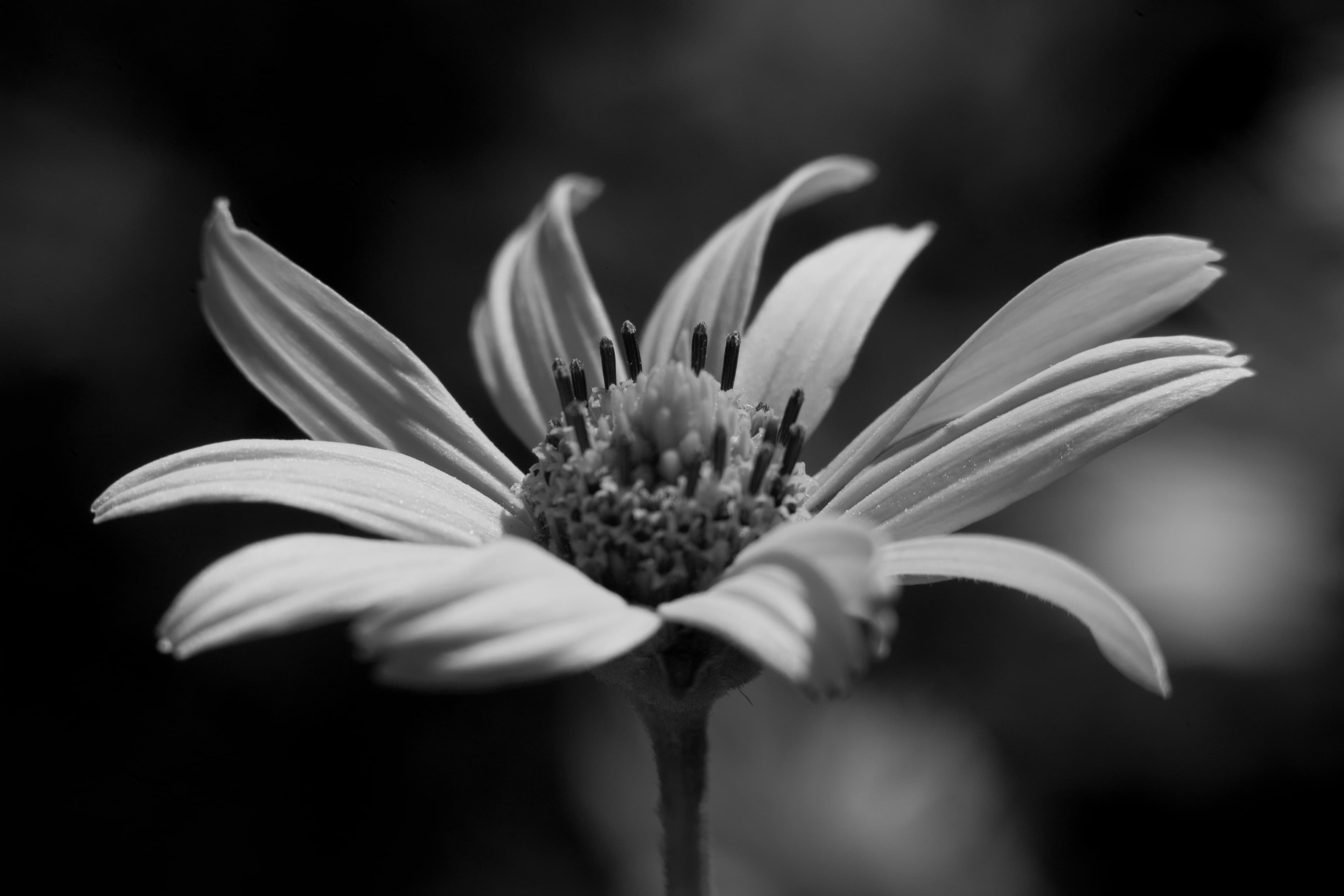
Convert BGR to Grayscale
import cv2
print("Reading image for grayscale conversion...")
img = cv2.imread('sample.jpg')
if img is None:
    print("Failed to load image.")
else:
    gray = cv2.cvtColor(img, cv2.COLOR_BGR2GRAY)
    print("Image converted to grayscale.")
    cv2.imwrite('gray.jpg', gray)
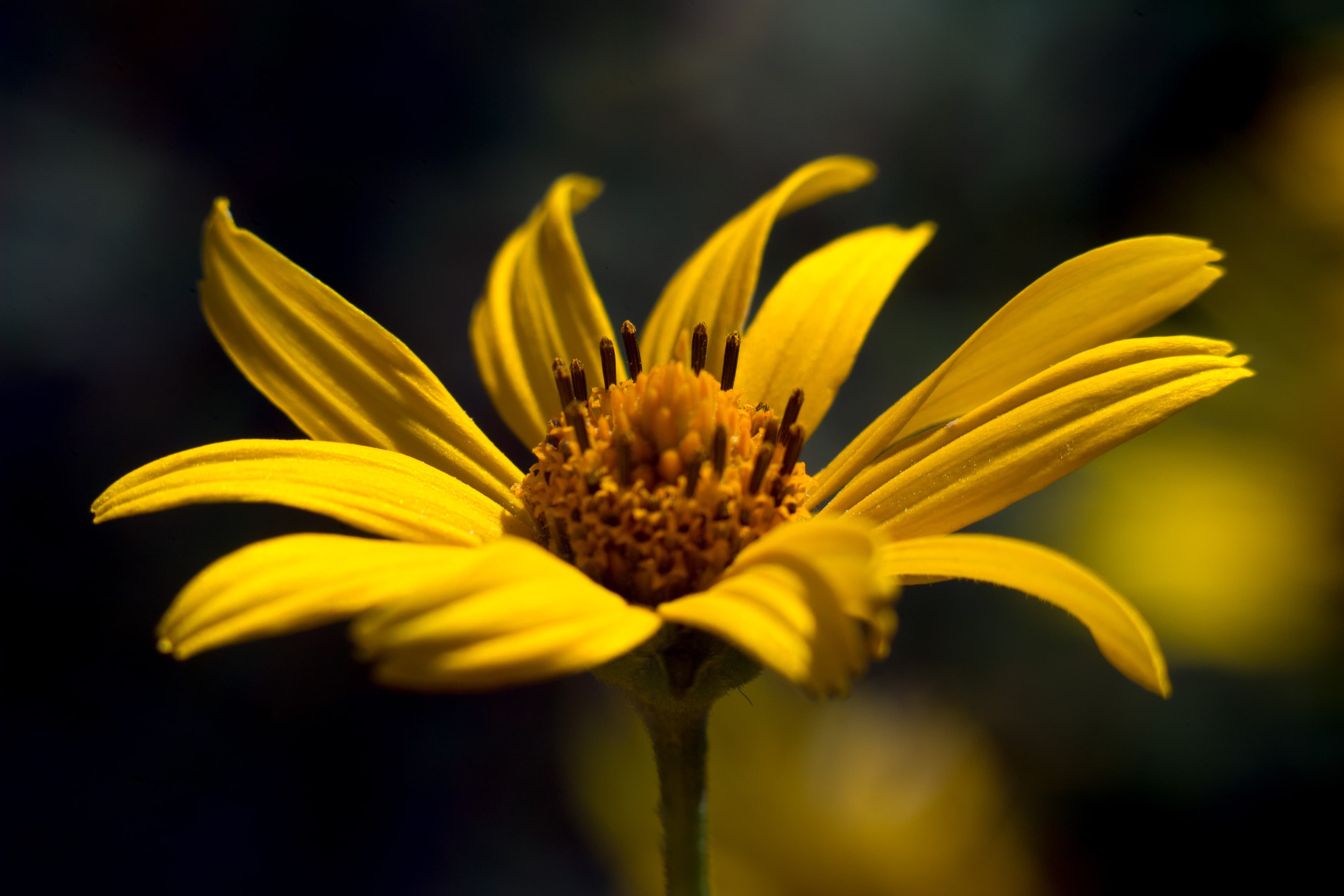
📷 Original Image
🖼️ Grayscale Output
Convert BGR to HSV
import cv2
print("Reading image for HSV conversion...")
img = cv2.imread('sample.jpg')
if img is None:
    print("Failed to load image.")
else:
    hsv = cv2.cvtColor(img, cv2.COLOR_BGR2HSV)
    print("Image converted to HSV.")
    cv2.imwrite('hsv.jpg', hsv)
📷 Original Image
🖼️ HSV Output
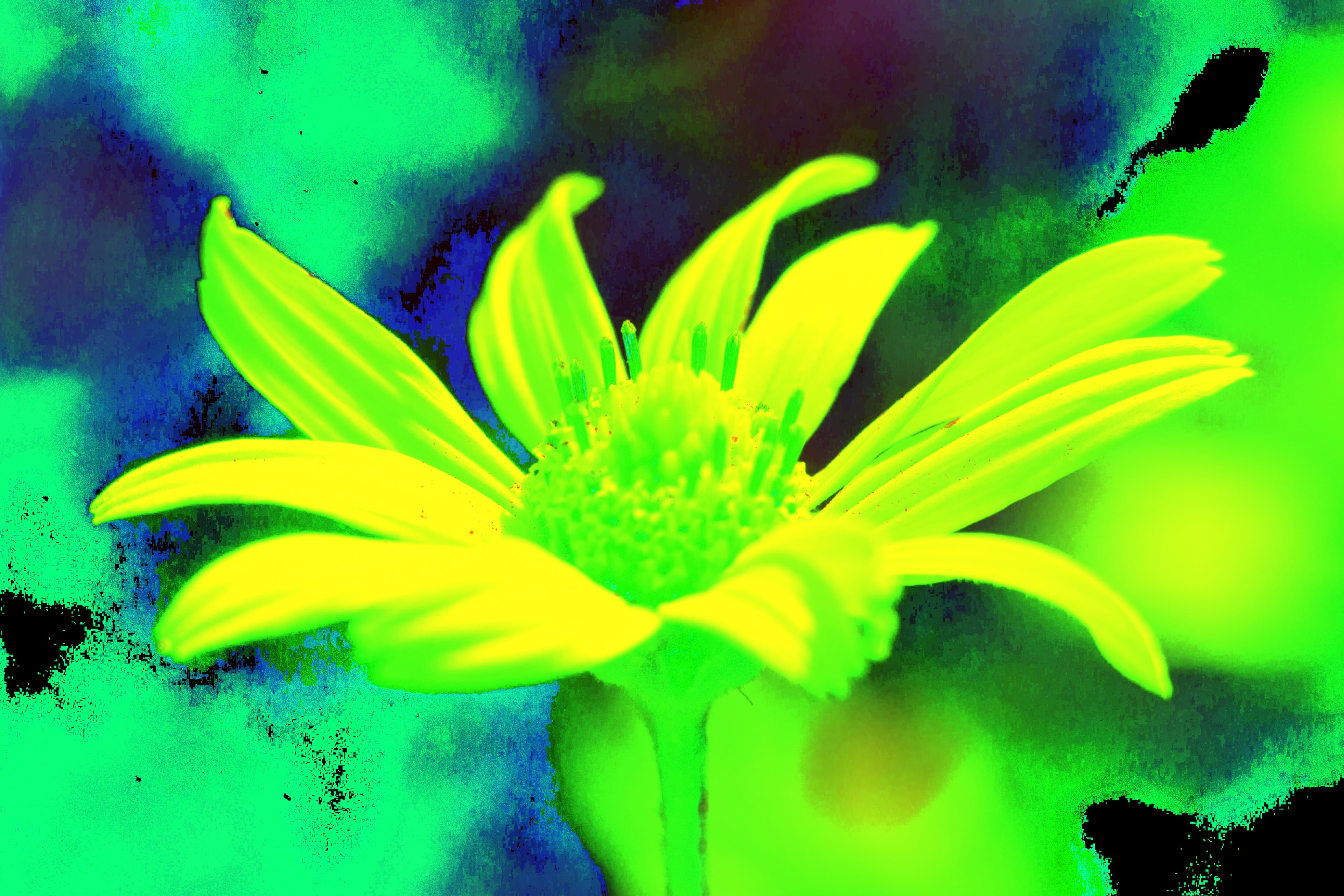
HSV separates color (hue) from intensity and saturation, making it ideal for color-based segmentation and filtering.
🧮 Accessing and Modifying Pixels
Every image in OpenCV is stored as a NumPy array. You can access pixels like this:
Read a Pixel Value
import cv2
img = cv2.imread('sample.jpg')
b, g, r = img[100, 50]  # row=100, col=50
print("Blue:", b, "Green:", g, "Red:", r)
#Output: Blue: 14 Green: 0 Red: 1
Modify a Pixel Value
import cv2
img = cv2.imread('sample.jpg')
img[100, 50] = [0, 0, 255]  # Set to red (BGR)
cv2.imwrite('modified_pixel.jpg', img)
📷 Modified Image Output
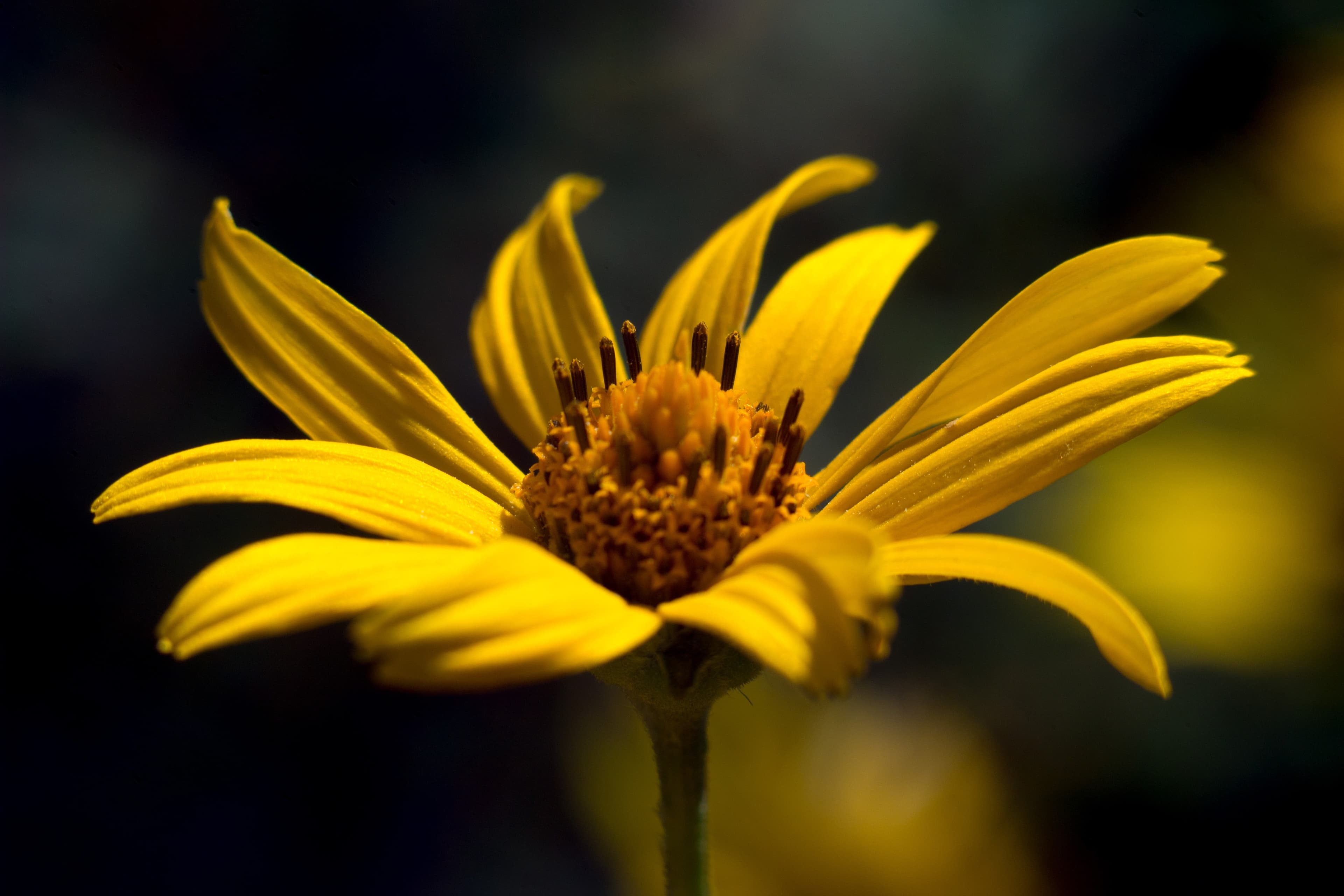
Now, it seems like the image hasn’t changed. But if you look closely (by zooming in alot!), you can see that the pixel at (100, 50) is now red.
🔍 Image Properties
OpenCV images have the following attributes:
| Property | Description | Example |
|---|---|---|
shape | Tuple of (height, width, channels) | (512, 512, 3) |
size | Total number of elements | 786432 |
dtype | Data type of image elements | uint8 |
import cv2
img = cv2.imread('sample.jpg')
print("Shape:", img.shape)
print("Size:", img.size)
print("Data type:", img.dtype)
Output:
Shape: (3306, 4959, 3)
Size: 49183362
Data type: uint8Most images are stored as 8-bit unsigned integers (uint8). This means each color channel ranges from 0–255.
📝 Practice Questions
❓ Question 1
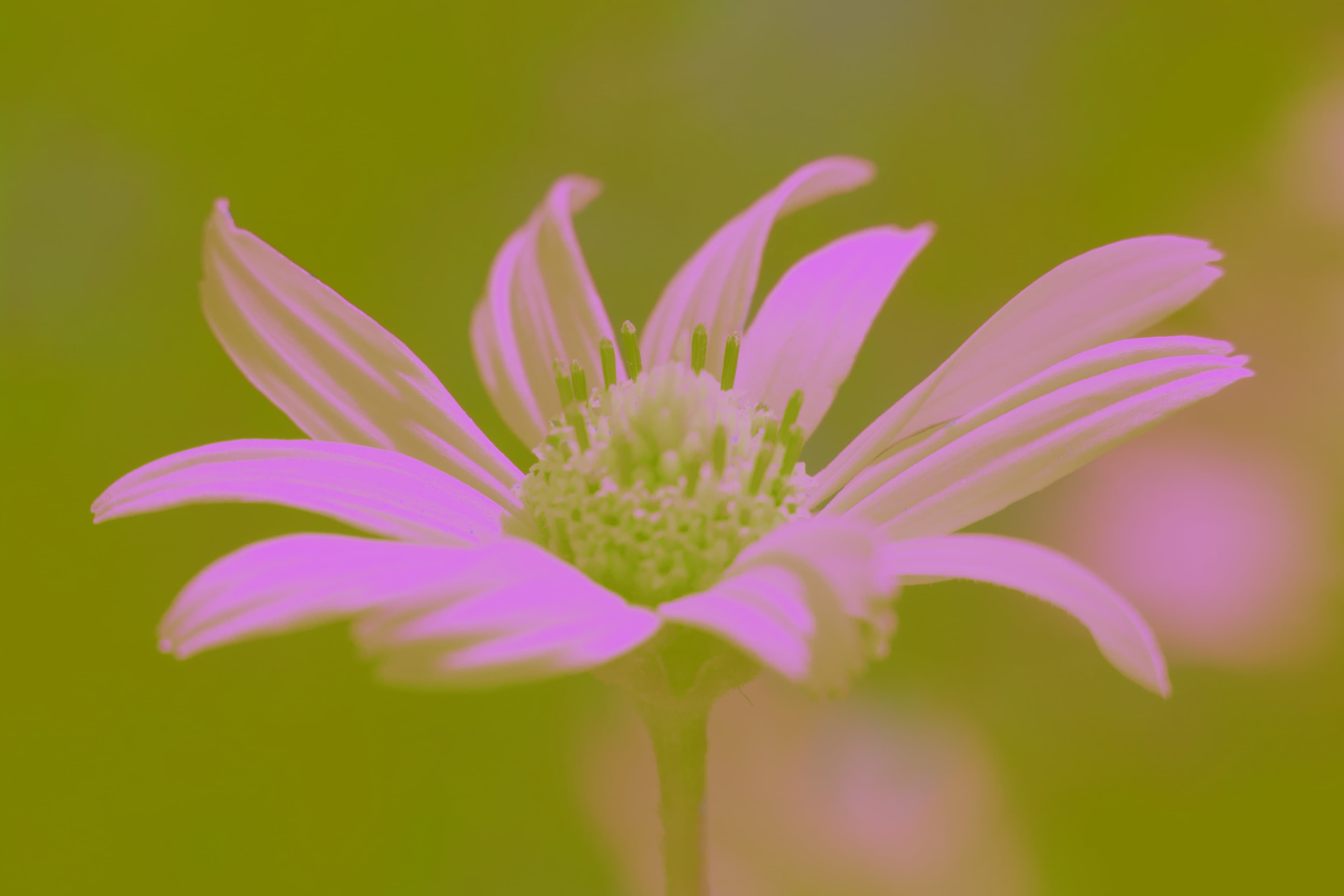
Read an image and convert it to LAB color space. Save the result.
Show Code
import cv2
img = cv2.imread('sample.jpg')
lab = cv2.cvtColor(img, cv2.COLOR_BGR2LAB)
cv2.imwrite('lab.jpg', lab)
📷 LAB Image Output
❓ Question 2
Access pixel at (150, 80) and print its BGR values.
Show Code
import cv2
img = cv2.imread('sample.jpg')
print("Pixel at (150, 80):", img[150, 80])
✅ Summary
- You learned how OpenCV represents and manipulates images.
- Explored conversions to Grayscale, HSV, and LAB.
- Accessed and modified individual pixels.
- Investigated image shape, size, and datatype.